 March 11, 2026
 11 min read
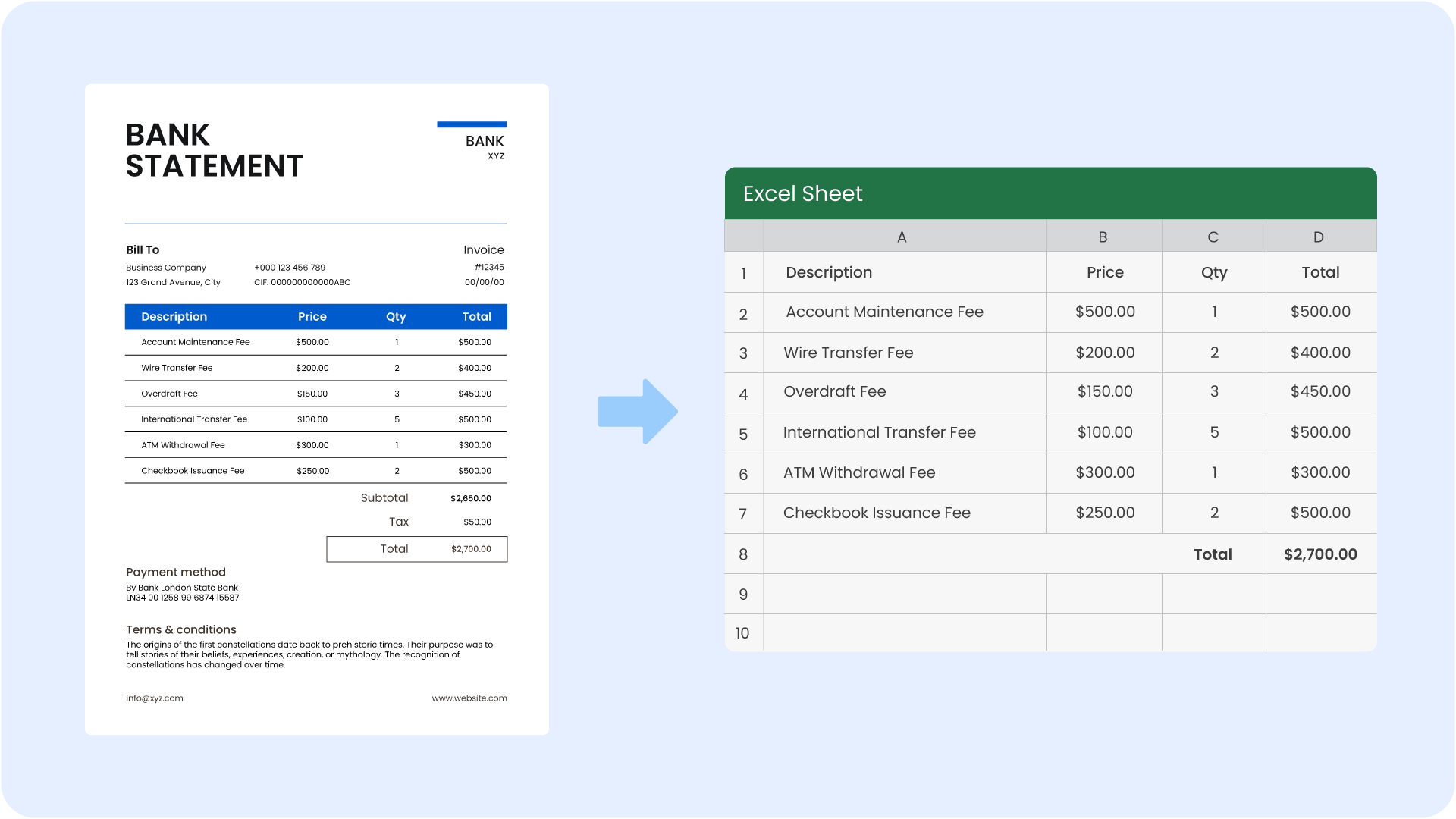
Manual data entry is a structural bottleneck for any modern business. For accountants and financial analysts, the “manual entry nightmare” often involves spending hours transcribing thousands of transactions from static images into a workbook. When you choose to convert bank statement JPG to Excel via automation, you are not just saving time; you are protecting the integrity of your financial records. A single mistyped digit can jeopardize an entire quarterly report, leading to forensic audits and fiscal discrepancies.
In 2026, the transition from paper to pixels has evolved into a task of high-precision intelligence. This guide provides a definitive roadmap to mastering the statement image to XLS workflow, ensuring that your data is audit-ready, searchable, and 100% accurate.
1. Why Accuracy is Non-Negotiable in Financial Conversion
In the world of finance, data integrity is the baseline for trust. If you convert bank statement JPG to Excel and miss a decimal point or misread a digit, the consequences can be severe:
-
Reconciliation Failure: Your internal ledgers will not match your actual cash flow, leading to “bounced” payments or missed liabilities.
-
Regulatory Risk: Tax authorities and auditors require a perfect paper trail. “Mostly correct” data is considered a red flag during a corporate audit.
-
Strategic Errors: Management decisions based on faulty spreadsheets can lead to disastrous investment choices or cash flow shortages.
By choosing a professional engine to perform your statement image to XLS tasks, you eliminate the “fatigue factor” of human labor, ensuring that a “3” never looks like an “8” to your accounting system.
2. Pre-Conversion: Preparing Images for Maximum Precision
The quality of your output is 100% dependent on the quality of your input. Before you attempt to convert bank statement JPG to Excel, follow these technical pre-processing steps:
Achieving the 300 DPI Standard
Resolution is the single most important factor. For the AI to distinguish complex table borders and fine fonts, your image should be at least 300 DPI. Low-resolution mobile photos often appear “blurry” to the engine, which is the primary cause of extraction errors.
Lighting and Perspective Correction
If you are capturing the statement with a smartphone, ensure the lighting is bright and even. Avoid deep shadows across the columns. Always lay the paper flat on a dark surface to create a high-contrast background. Professional statement image to XLS tools perform “deskewing” automatically, but starting with a straight, clear shot significantly boosts accuracy.
Noise Reduction and Cropping
Remove extra visual “clutter” like the edges of a desk or background objects. Crop the image tightly around the transaction table. This allows the convert bank statement JPG to Excel engine to focus exclusively on the data grid rather than the bank’s marketing logos.
3. Choosing the Tool: Standard OCR vs. Financial AI

Not all Optical Character Recognition (OCR) tools are created equal. When comparing PDF/JPG converters, standard tools often struggle with the tight spacing and multi-column grids found on bank pages.
To successfully convert bank statement JPG to Excel, you need Intelligent Document Processing (IDP). Unlike basic tools, IDP understands the logic of a bank statement. It knows that a 10-digit number in the header is an Account Number, while a string in the transaction grid is a Date. According to technical standards from Microsoft Research, AI-driven table recognition has reduced manual data verification time by over 70%
4. The Step-by-Step Conversion Workflow
Building a digital ledger at imgtoexcel.com follows a simple, 4-step logical progression:
-
Secure Ingestion: Upload your bank statement JPG to a secure portal. High-end platforms use AES-256 encryption to protect your sensitive financial PII.
-
AI-Powered Scrape: The engine identifies the column boundaries—separating “Debit” from “Credit” automatically. This is the core of the statement image to XLS transformation.
-
Contextual Mapping: The AI maps the dates, merchant names, and amounts into a structured XML format.
-
Export and Integration: With one click, you convert bank statement JPG to Excel (.xlsx) or CSV, ready for instant integration into QuickBooks, Xero, or SAP.
5. Advanced Techniques for High-Accuracy Data Validation
Once the conversion is complete, you must perform “Mathematical Reconciliation” to verify the results. This is the final shield against data corruption.
-
The Balance Check Formula: In your new Excel sheet, create a formula: (Starting Balance + Total Credits) – Total Debits. This must match the “Ending Balance” listed on the original statement.
-
Confidence Scoring: Professional tools like imgtoexcel.com provide a confidence score for every character. If the AI is unsure about a number, it will highlight it for your manual review, allowing you to convert bank statement JPG to Excel with complete peace of mind.
-
Pattern Matching: Validating that all dates follow the same format (e.g., MM/DD/YYYY) ensures your spreadsheet can be chronologically sorted without errors.
6. Post-Conversion: Cleaning and Formatting in Excel
Raw OCR output often needs a “polish” phase to become fully functional. To finalize your statement image to XLS project, use these professional Excel tips:
-
The VALUE Function: Sometimes Excel imports numbers as text. Use the =VALUE() function to convert them back into calculable digits.
-
The TRIM Tool: Remove invisible trailing spaces that can break VLOOKUP formulas.
-
Data Type Formatting: Select your amount columns and set the format to “Currency” or “Accounting.” This makes your convert bank statement JPG to Excel report look professional and easy to read for senior management.
7. Troubleshooting Common Extraction Errors
Even the best AI can face challenges. Here is how to handle them:
-
Multi-Page Statements: If your statement spans 10 pages, ensure your tool supports “Batch Processing.” This keeps the headers consistent across all pages of the statement image to XLS export.
-
Sideways Stamps: If a “PAID” stamp covers a transaction, use a photo editor to increase the contrast before you convert bank statement JPG to Excel. This helps the AI “see through” the stamp to the numbers beneath.
-
Merged Cells: Check for rows where a long merchant description might have split into two lines. Merge these back together to maintain a clean ledger.
Conclusion: Lead the Digital Transformation in Finance
The era of manual data entry is officially over. To thrive in the 2026 fiscal landscape, your firm must embrace the speed and precision of AI. By choosing to convert bank statement JPG to Excel, you empower your team to focus on high-level advisory tasks rather than clerical transcription.
Stop letting your data stay frozen in a static image. Use the power of AI to convert bank statement JPG to Excel today and watch your organizational velocity soar. Accuracy, speed, and security are now within your reach.
Why imgtoexcel.com is The Right Solution For You?
At imgtoexcel.com, we provide the industry’s most accurate engine to convert bank statement JPG to Excel. Our platform is specifically fine-tuned for the complex grids used by global banks, ensuring that every statement image to XLS task maintains 99.9% data integrity.
We prioritize your security, using military-grade encryption and a strict no-log policy to protect your financial privacy. Whether you are an independent accountant or a global CFO, trust imgtoexcel.com to deliver the structured digital intelligence you need to lead your market. Experience the future of financial automation—choose imgtoexcel.com today!
Ready to Reclaim Your Billable Hours?
-
[Start Free Trial] – Convert your first 50 bank statements for free!